
OKX
OKX is a major cryptocurrency exchange with support for perpetual and futures trading. Crodl integrates with the OKX v5 API and supports both live and demo trading modes.
If you still need an OKX account, you can sign up through Crodl's OKX link for reduced fees: okx.com/join/37478560.
Creating API Keys
Step 1: Open API and Connections in OKX
From the OKX homepage, open your profile menu and navigate to API and connections.
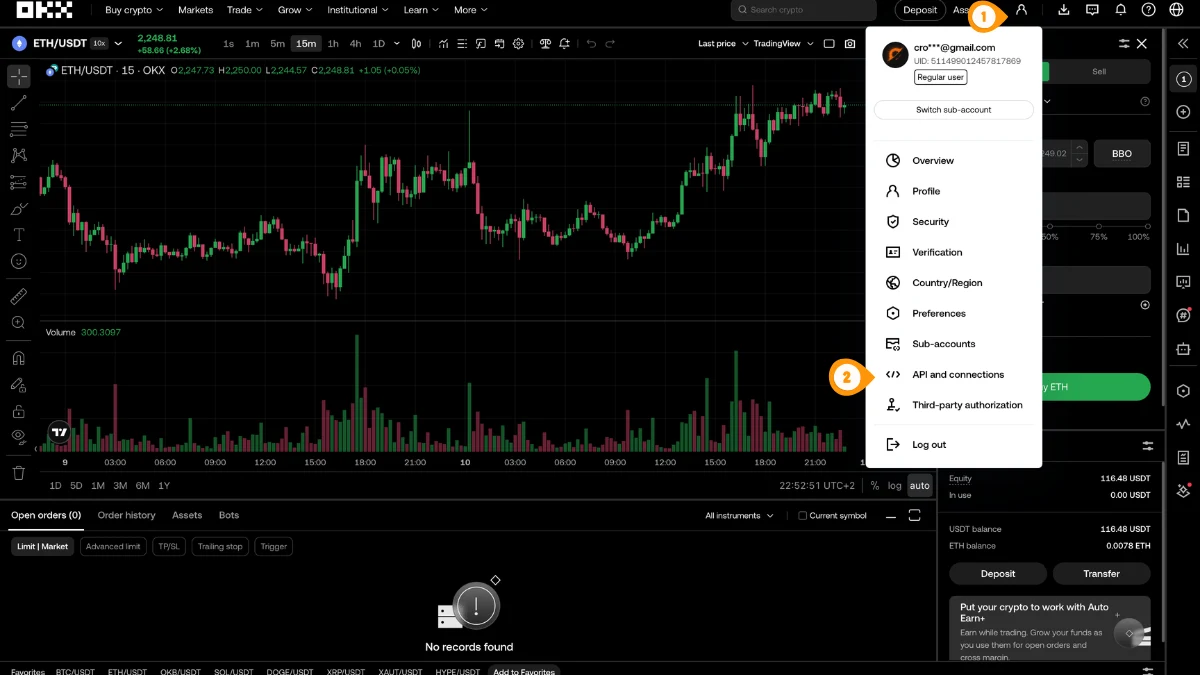
- Click your profile icon in the top-right
- Select "API and connections"
You can also go directly to okx.com/account/my-api.
Step 2: Create a New API Key
On the API and connections page, start creating a new key.
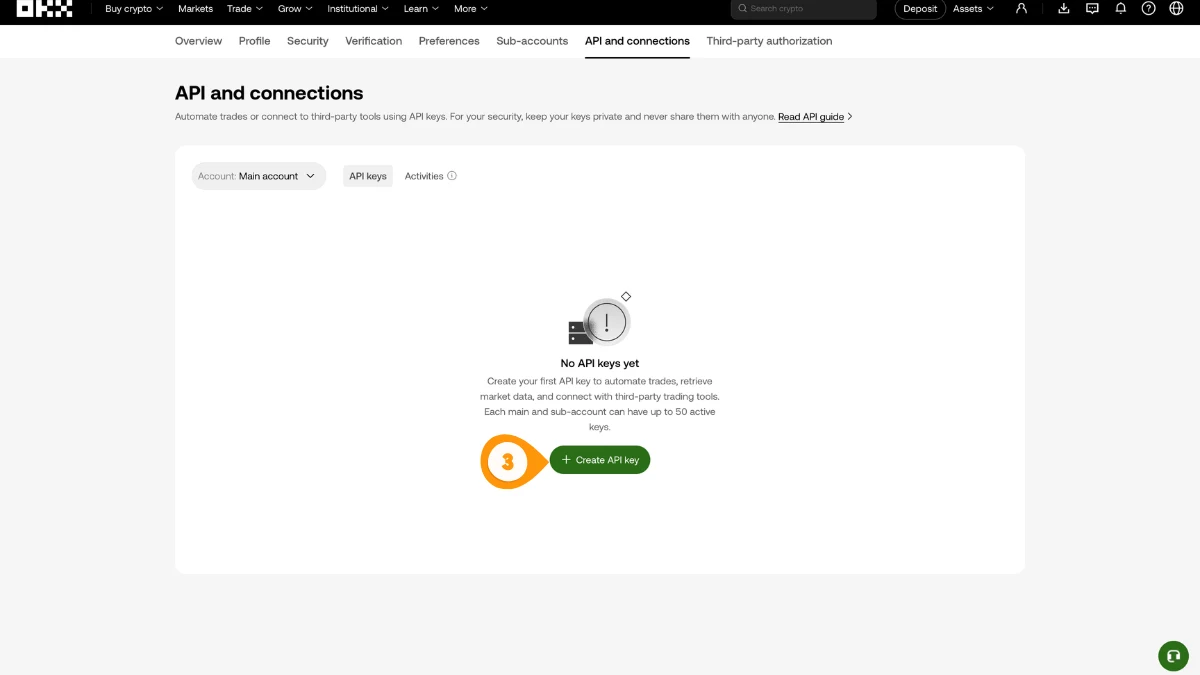
- Click "Create API key"
Step 3: Configure Key Details
Set the key name, choose the account, enable API trading, optionally bind the Crodl server IP, and create your passphrase.
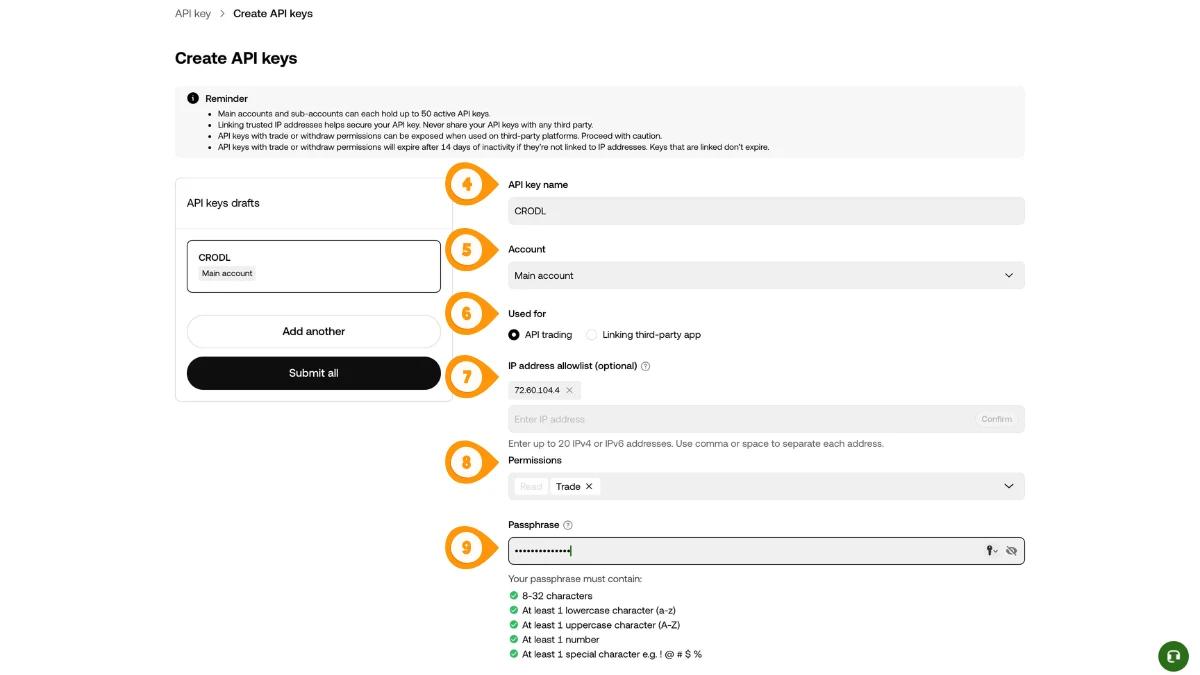
- Enter an API key name such as
Crodl - Select the correct account for this key
- Choose API trading
- Optional: add the Crodl server IP
187.127.209.38to the IP allowlist - Enable Read and Trade permissions only
- Create and save your passphrase
OKX requires a passphrase in addition to the API key and secret. Store it securely — you will need it when adding the key to Crodl.
Step 4: Copy Your API Key and Secret
Copy and store your credentials securely. The secret key is only shown once.
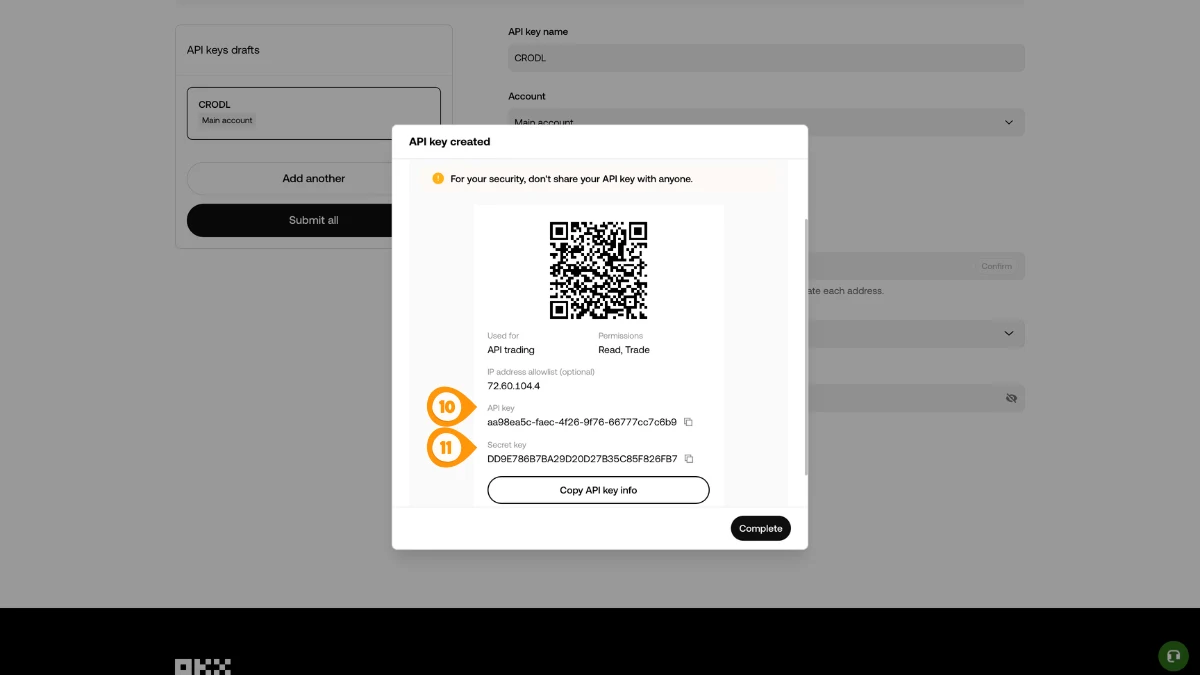
- Copy the API key
- Copy the Secret key
Step 5: Open Crodl Settings
Back in Crodl, open Settings so you can add your OKX API key.
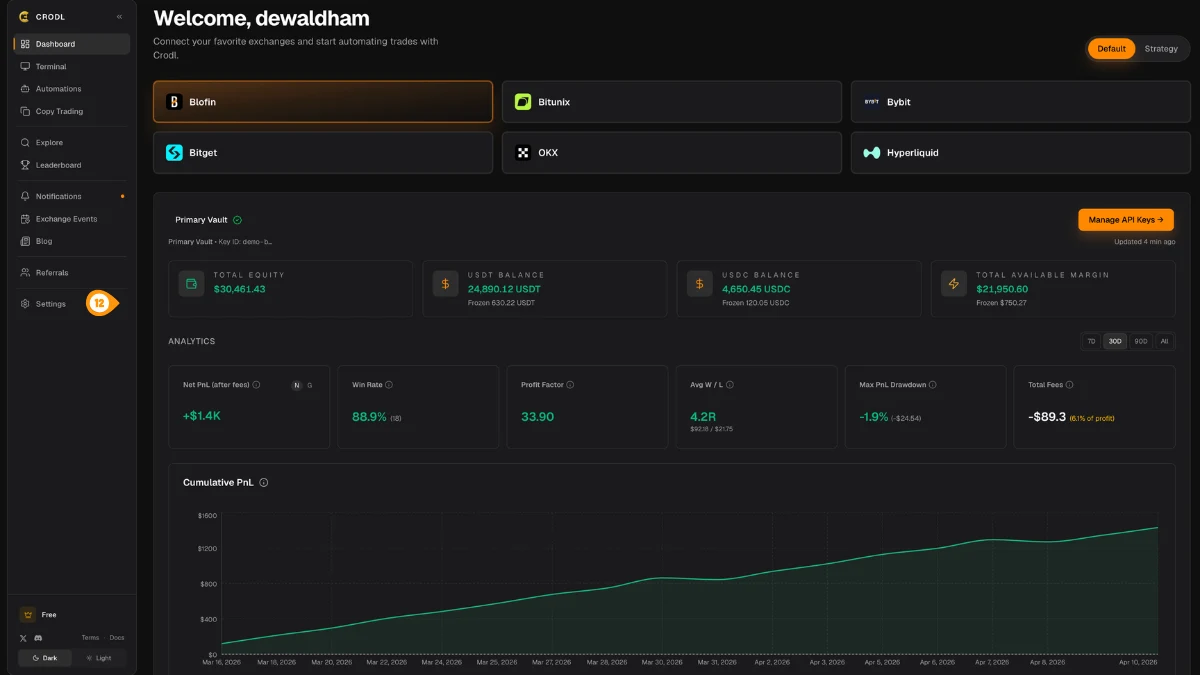
- Click "Settings" in the left sidebar
Step 6: Add Your OKX Key to Crodl
In Settings → API Keys, select OKX and paste your credentials.
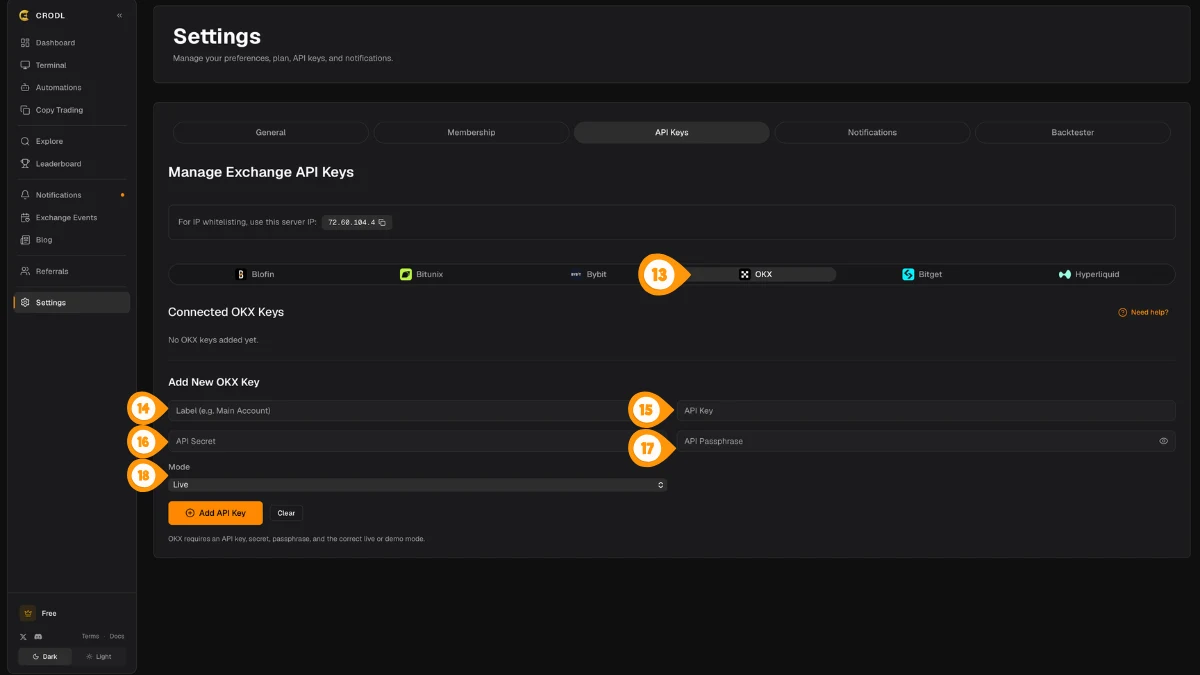
- Select the OKX tab
- Enter a label for this key, for example
Main Account - Paste your API Key
- Paste your API Secret
- Paste your API Passphrase
- Choose the mode (Live or Demo) to match your OKX key
Then click "Add API Key" to save the credentials.
Step 7: Verify the Connection
Verify the key to confirm Crodl can connect and trade using your new OKX API credentials.
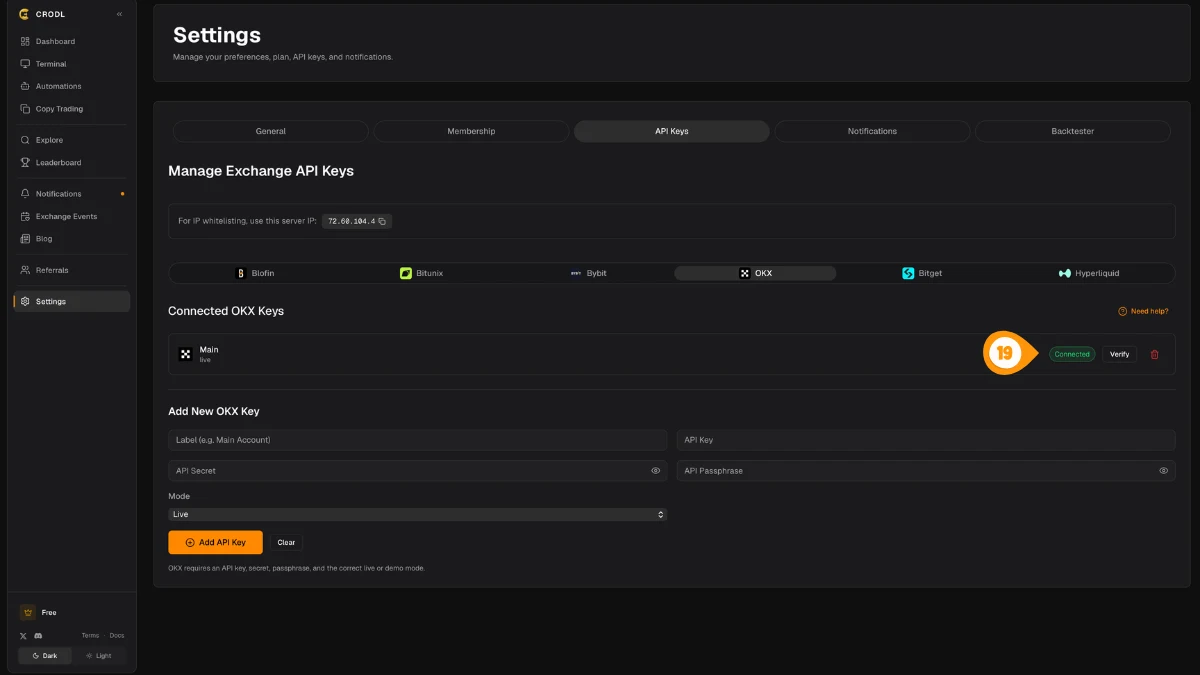
- Click "Verify" next to the key you just added
A green Connected badge confirms the key is working.
If you enable IP whitelisting on OKX, use the server IP shown in Crodl Settings → API Keys so the key can validate and trade successfully.
Features
Live and Demo Keys
OKX supports both live and demo keys in Crodl. Choose the correct mode when saving the key so Crodl connects to the right environment.
Canonical Symbol Format
OKX derivatives use full exchange-native instId values such as:
BTC-USDT-SWAPfor linear perpetualsBTC-USD-SWAPfor inverse perpetuals
Crodl keeps these OKX symbols in their canonical format for trading, triggers, fills, and TP/SL management.
Position Modes
OKX supports:
- Net mode — one-way mode
- Long/Short mode — hedge mode
Crodl respects the position mode configured on your OKX account.
Troubleshooting
- Double-check the passphrase if verification fails
- Make sure the key has Read and Trade permissions enabled
- Confirm the mode in Crodl matches your OKX key (
liveordemo) - If you use IP restrictions, ensure
187.127.209.38is whitelisted - See API Errors for common OKX error codes