
Bitget
Bitget is a leading crypto derivatives exchange. Crodl integrates with Bitget's v2 API.
Creating API Keys
Step 1: Open API Keys in Bitget
From the Bitget homepage, open your profile menu and navigate to API keys.
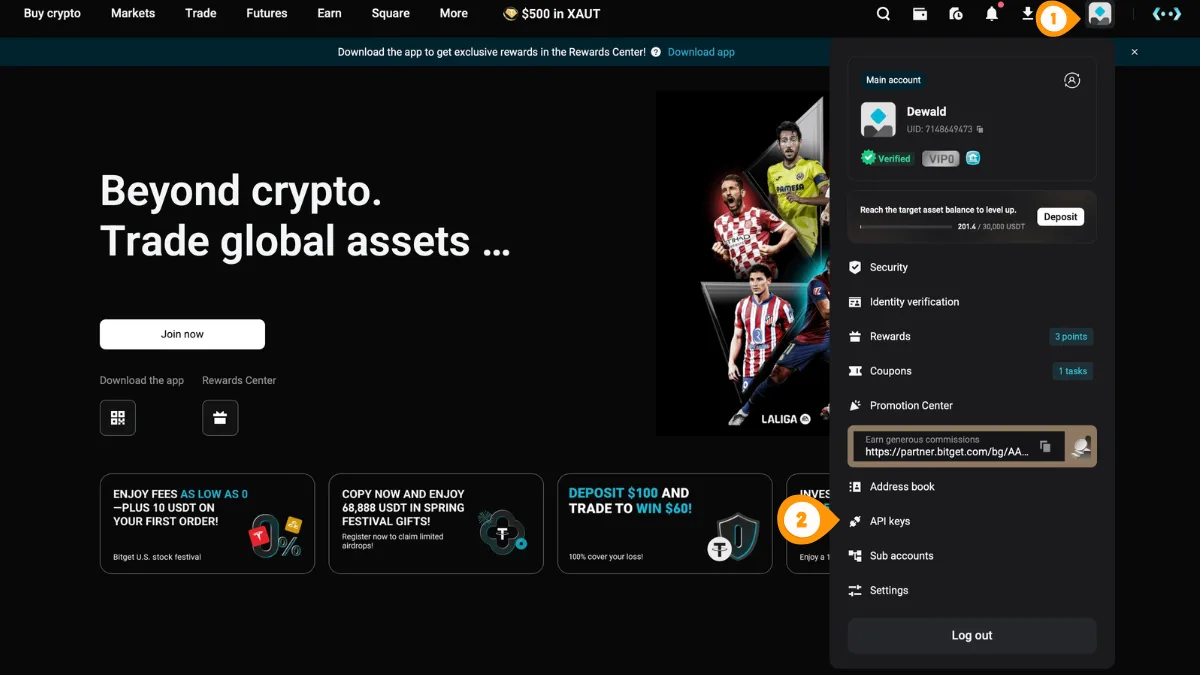
- Click your profile icon in the top-right
- Select "API keys"
You can also go directly to bitget.com/account/api.
Step 2: Create a New API Key
On the API keys page, start creating a new key.
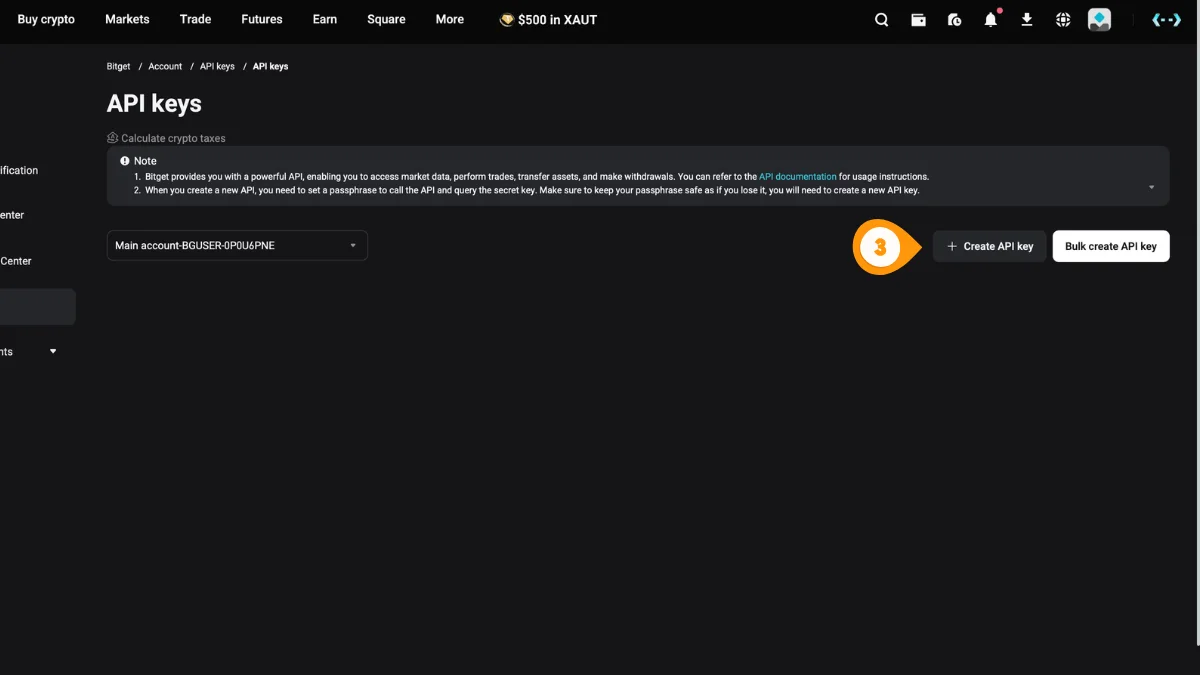
- Click "Create API key"
Step 3: Select API Key Type
Choose the standard system-generated API key type.
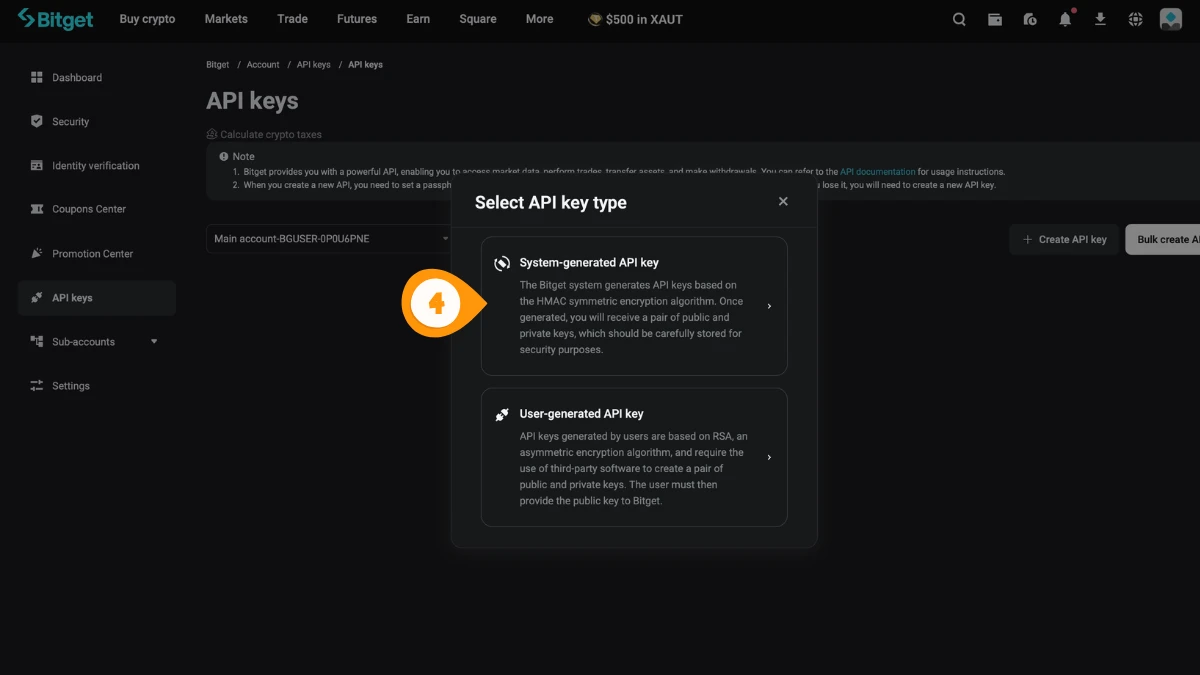
- Select "System-generated API key"
Step 4: Configure Permissions & Security
Set a name, passphrase, trading permissions, and (optionally) restrict access with an IP whitelist.
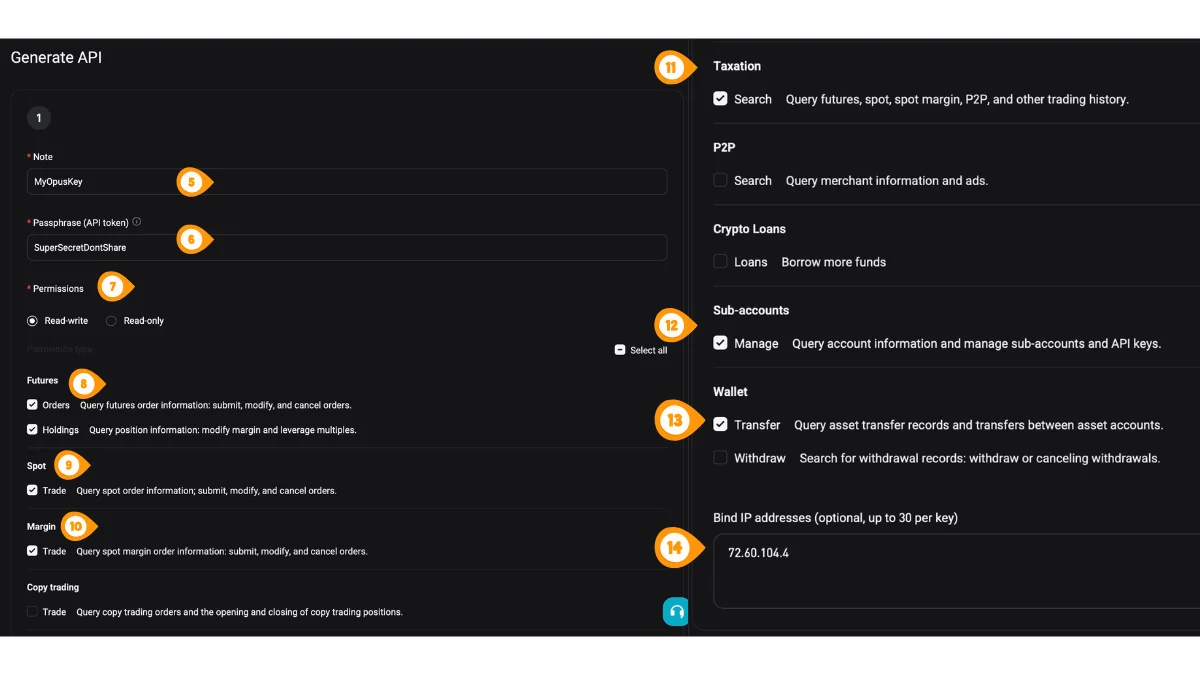
- Set a note/name for the key (e.g. "Crodl")
- Set your passphrase (API token) — you will enter this in Crodl
- Choose "Read-write" so trades can be placed
- Enable Futures permissions you need (e.g. Orders, Holdings) for derivatives trading
- If you trade spot, enable Spot → Trade
- If you trade margin, enable Margin → Trade
- Optional: keep Taxation → Search enabled for history queries
- Optional: enable Sub-accounts → Manage if you use sub-accounts
- Optional: enable Wallet → Transfer if you need internal transfers — do NOT enable withdrawals
- Optional: bind IP addresses and add the Crodl server IP
187.127.209.38
Step 5: Copy Your API Key & Secret
Copy and store your credentials securely. The secret is usually only shown once.
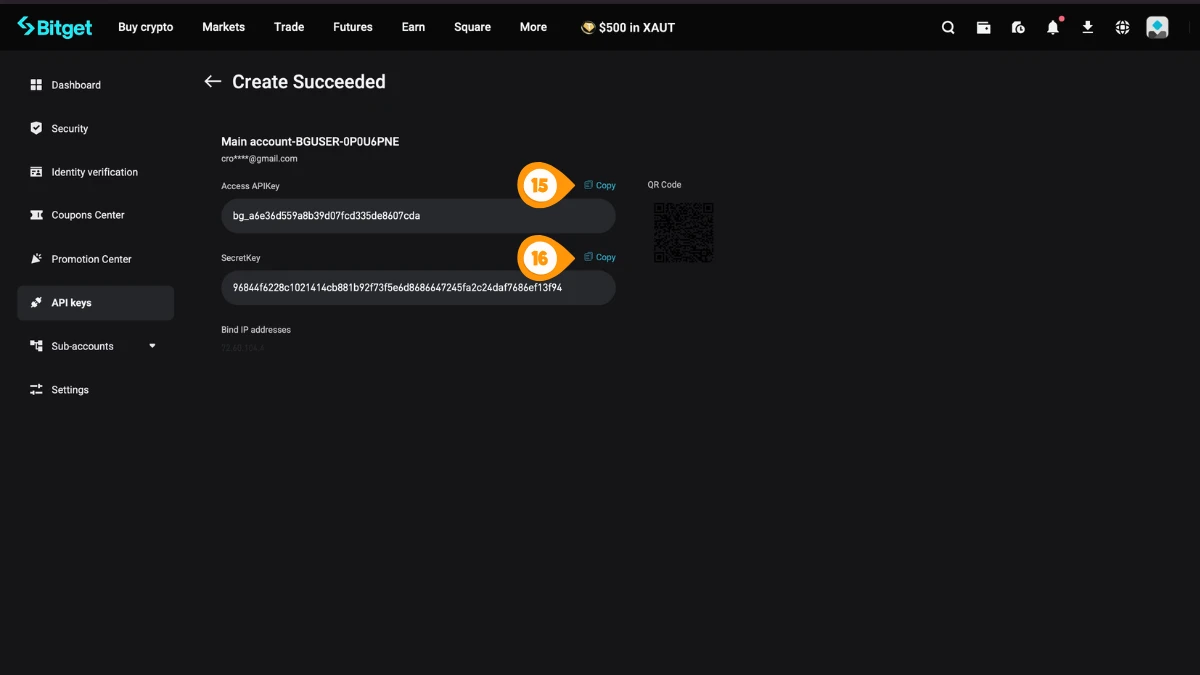
- Copy the Access API key
- Copy the Secret key
Bitget requires a passphrase in addition to the API key and secret. Store it securely — it cannot be recovered after creation.
Step 6: Open Crodl Settings
Back in Crodl, open Settings so you can add your Bitget API key.
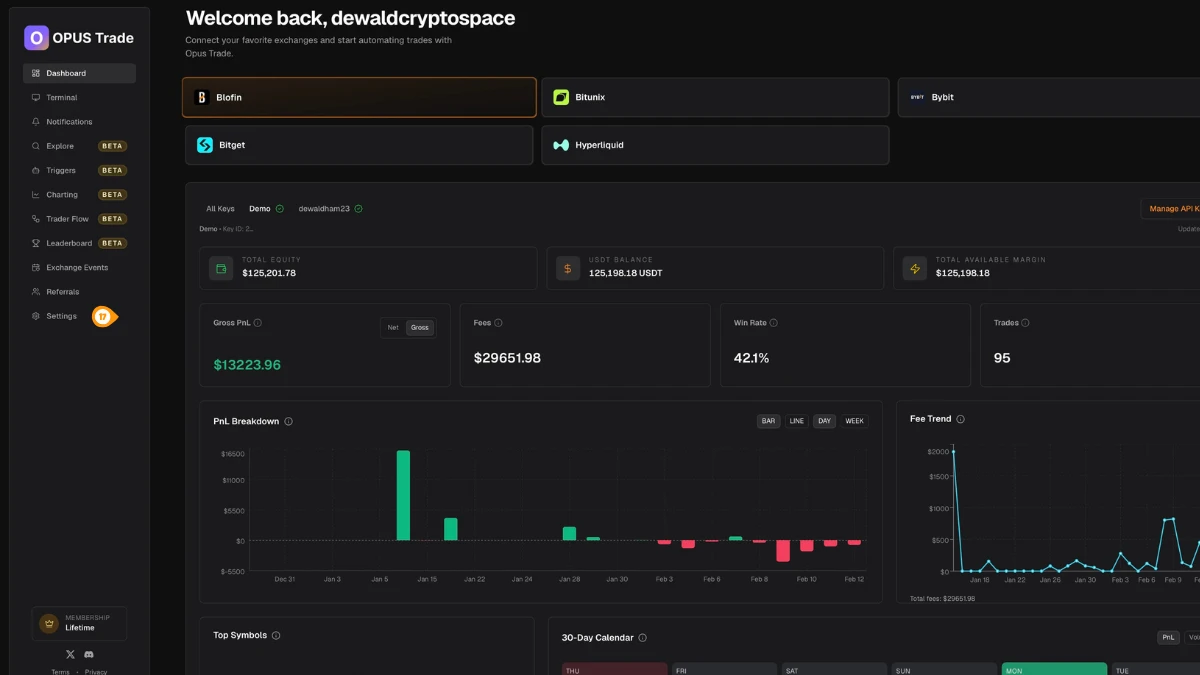
- Click "Settings" in the left sidebar
Step 7: Add Your Bitget Key to Crodl
In Settings → API Keys, select Bitget and paste your credentials.
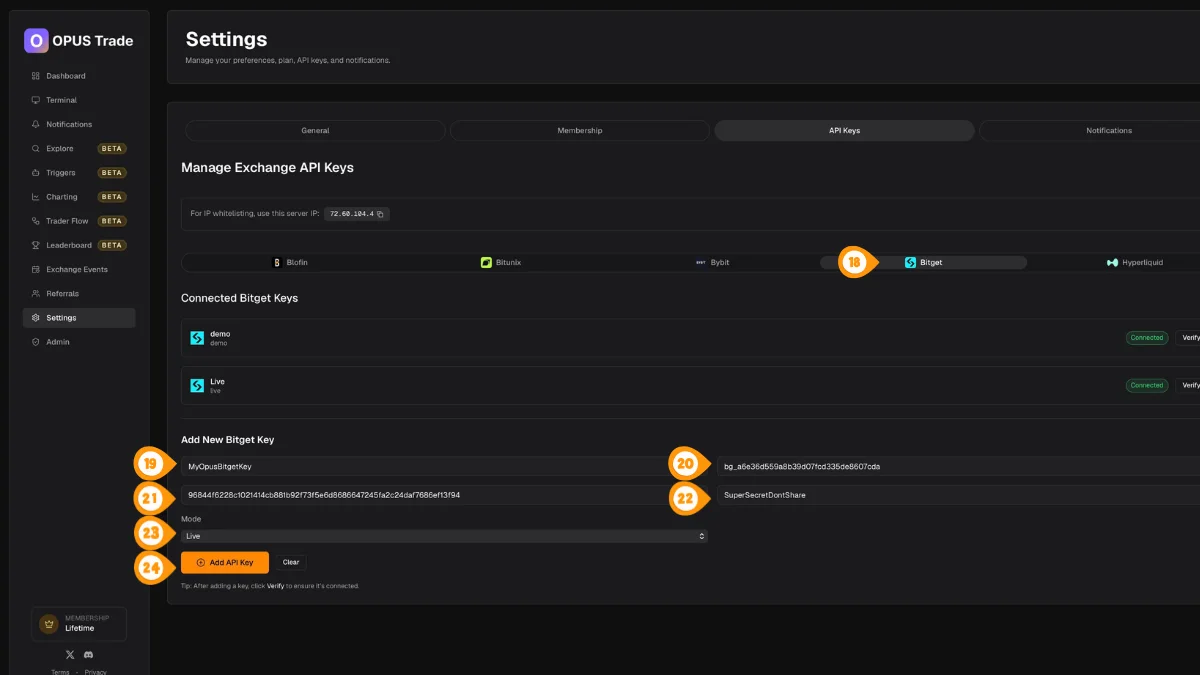
- Select the Bitget tab
- Enter a label for this key (e.g. "Main Account")
- Paste your Bitget API Key
- Paste your Bitget API Secret
- Paste your Bitget API Passphrase
- Choose the mode (Live or Demo) to match your Bitget key
- Click "Add API Key"
Step 8: Verify the Connection
Verify the key to confirm Crodl can connect and trade using your new API credentials.
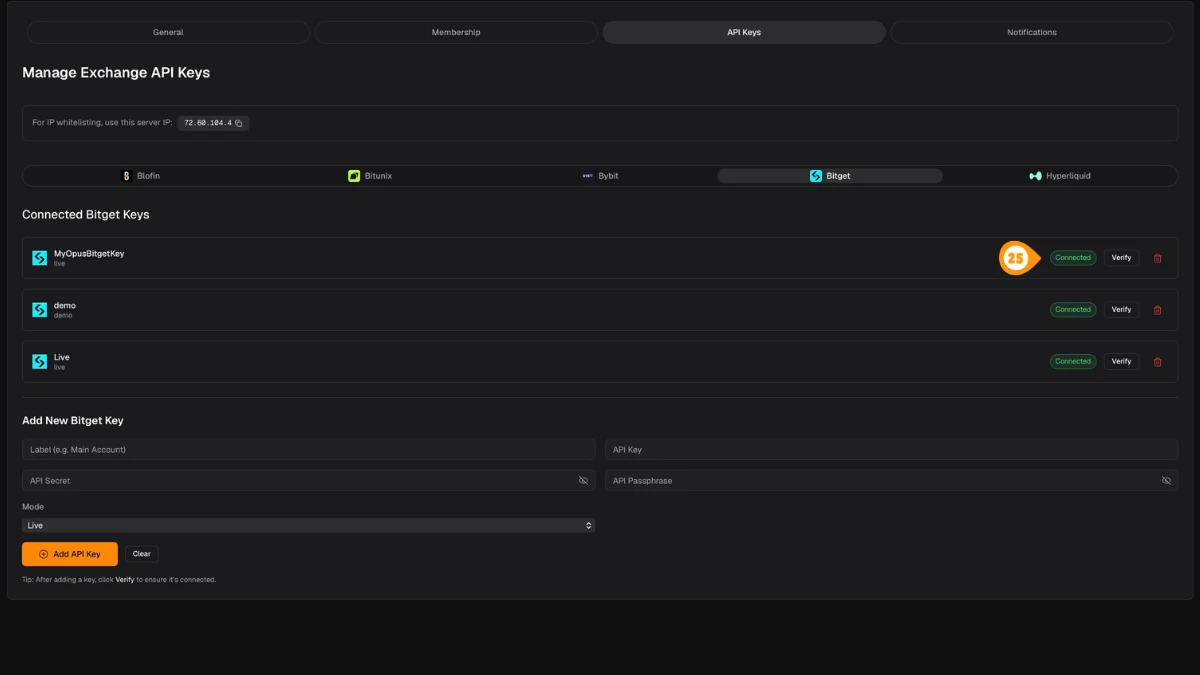
- Click "Verify" next to the key you just added
A green "Connected" badge confirms everything is working.
Use Read-write permission if you want Crodl to place trades. Read-only keys will only allow viewing positions and balances.
Features
Fills and Order History
Bitget provides detailed fill data that Crodl merges with position data to show complete trade history, including partial fills and averaged entry prices.
Order Types
- Market orders — Immediate execution
- Limit orders — Price-specified execution
- Plan orders — Trigger/conditional orders
Position Modes
- Single hold — One position per symbol (one-way)
- Double hold — Hold both long and short simultaneously (hedge)
Position Data
- Merged fills and position history
- Accurate average entry prices
- Real-time unrealized and realized PnL
Rate Limits
Bitget enforces per-endpoint rate limits:
- Most endpoints: 20 requests per second
- Crodl uses request deduplication and cooldowns
- Automatic exponential backoff on 429 errors
Troubleshooting
- Double-check the passphrase is correct
- Verify API permissions include read-write and Futures access
- Check IP restrictions if configured — ensure
187.127.209.38is whitelisted - See API Errors for error code reference