
Bybit
Bybit is one of the largest cryptocurrency derivatives exchanges. Crodl integrates with Bybit's v5 API for seamless futures trading.
Creating API Keys
Step 1: Open API Management in Bybit
From the Bybit homepage, open your profile menu and navigate to the API section.
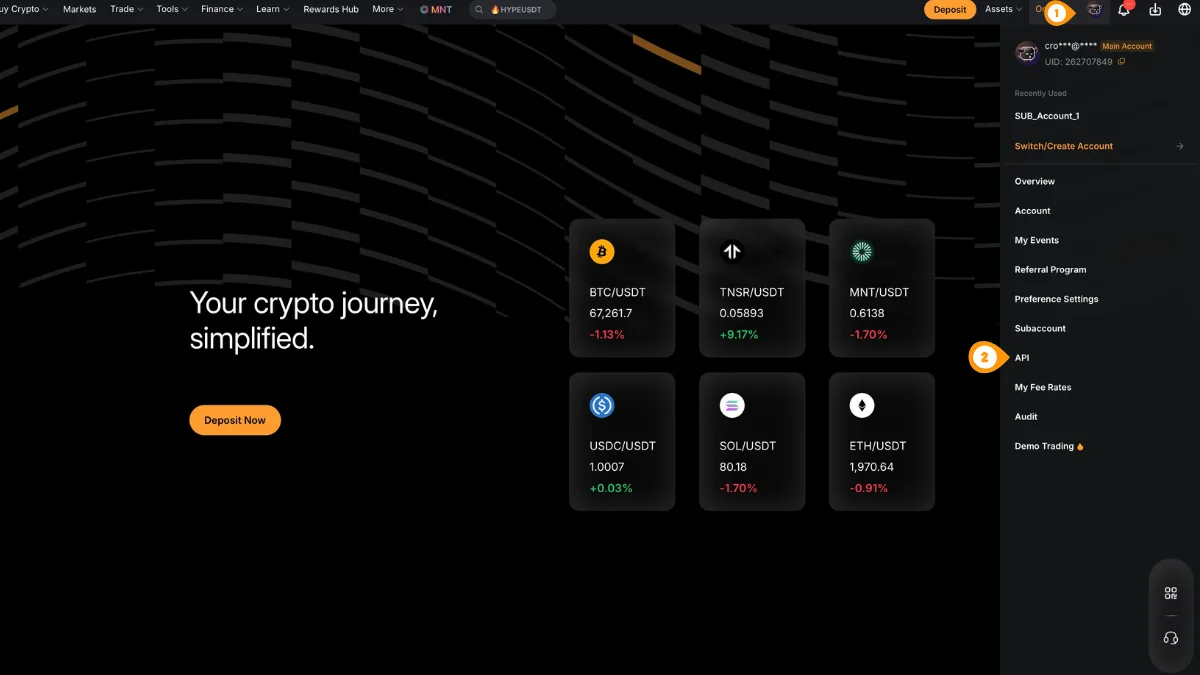
- Click your profile icon in the top-right
- Select "API" to open API Management
You can also go directly to bybit.com/app/user/api-management.
Step 2: Create a New Key
On the API Management page, start creating a new API key.
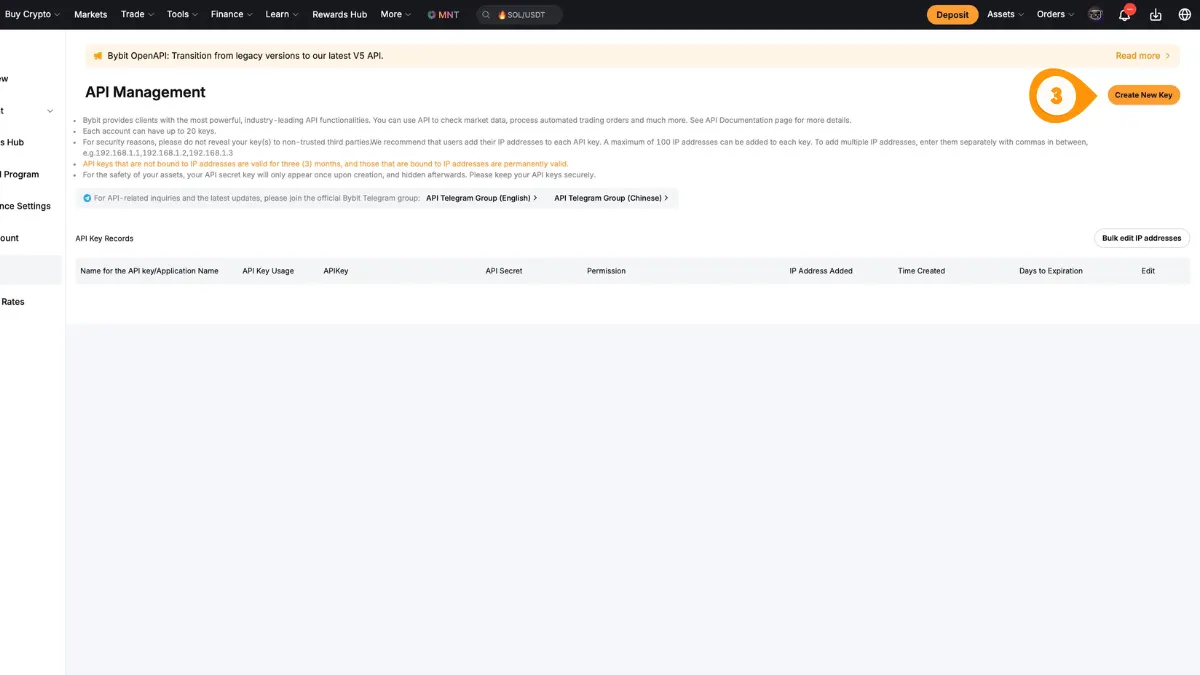
- Click "Create New Key"
Step 3: Select Key Type
Choose the standard key type for API access.
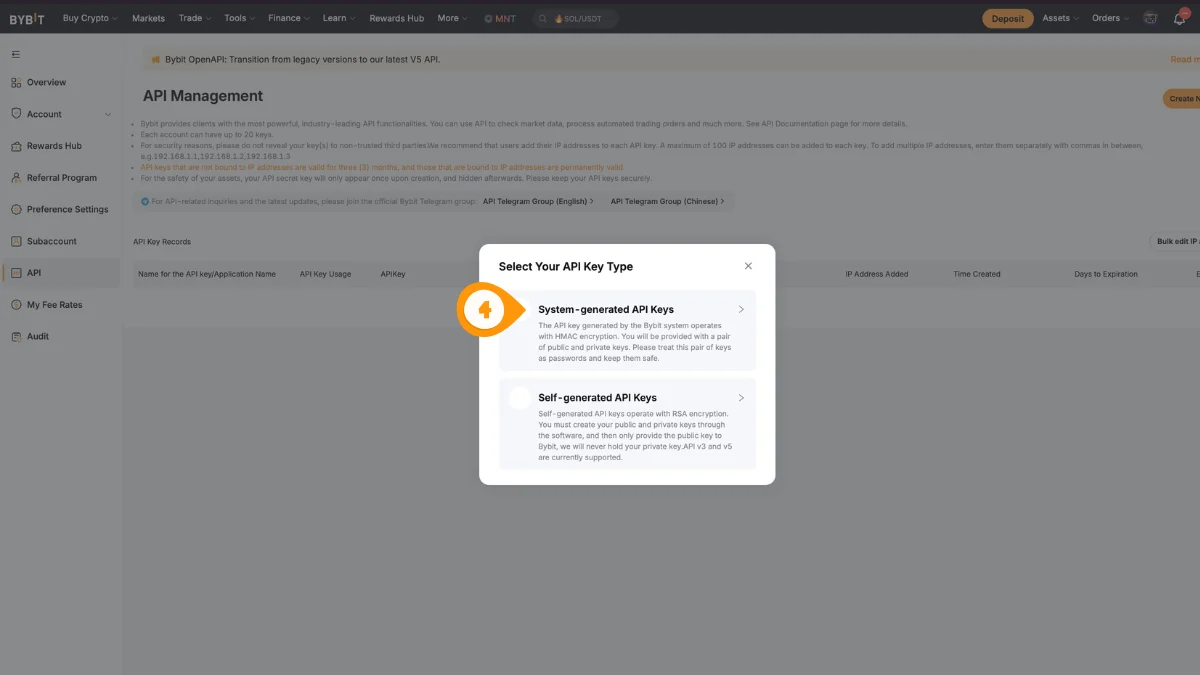
- Select "System-generated API Keys"
Step 4: Configure Permissions & Security
Set the key usage, name, permissions, and lock it down with IP restrictions.
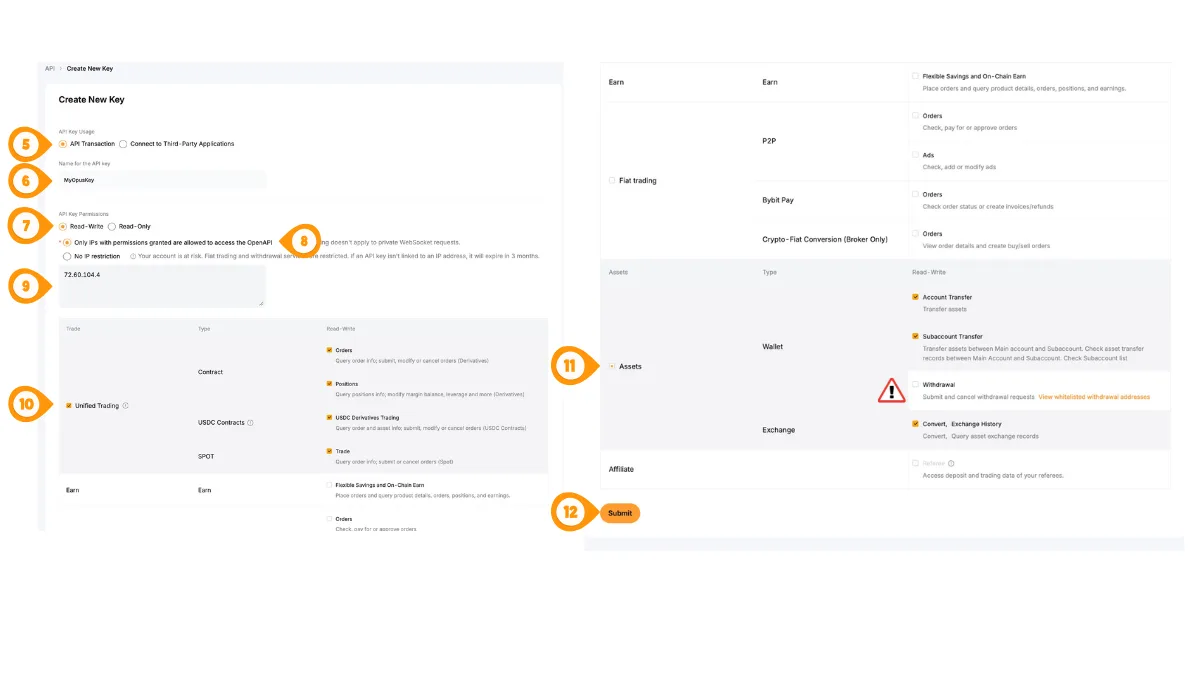
- Under API Key Usage, choose "Connect to Third-Party Applications"
- Name your key (e.g. "Crodl")
- Select the correct access level — use Read-Write for trading (Read-Only will not place orders)
- Enable IP restriction so only whitelisted IPs can use the key
- Add the Crodl server IP
187.127.209.38 - Select the correct account type (e.g. Unified Trading) based on your Bybit setup
- Do NOT enable Withdrawal permissions
- Click "Submit"
Step 5: Complete Security Verification
Bybit requires email and 2FA verification to create the key.
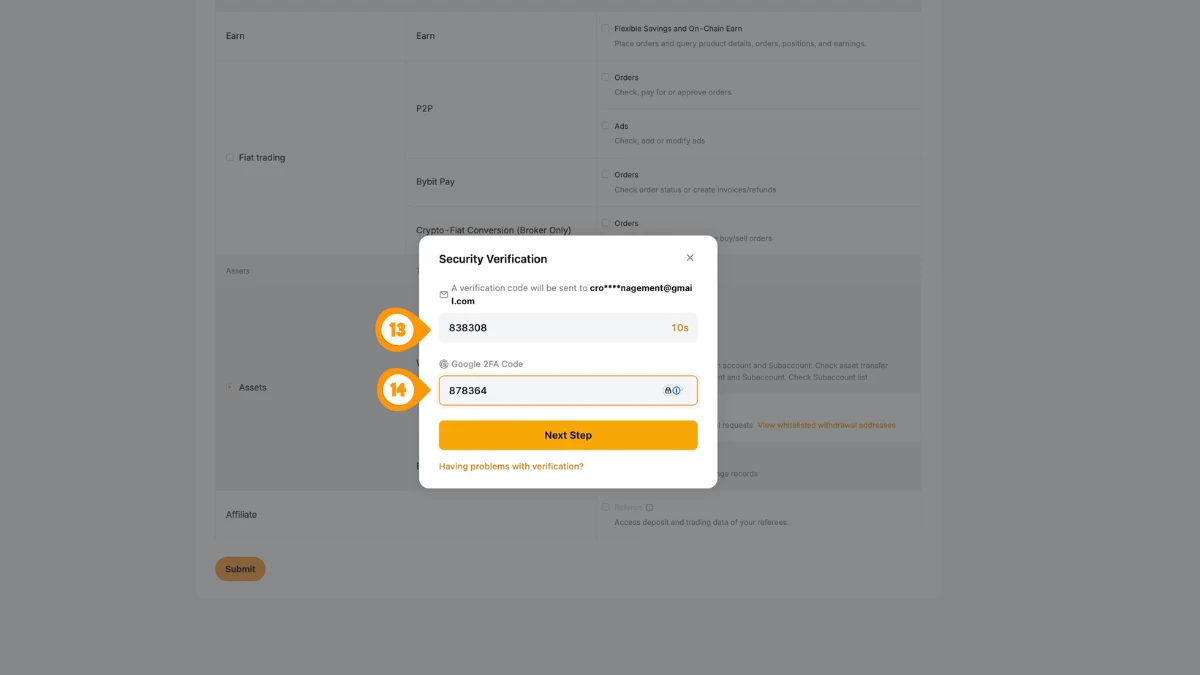
- Enter the email verification code
- Enter your Google 2FA code, then continue
Step 6: Copy Your API Key & Secret
Copy and store your credentials securely. The secret is usually only shown once.
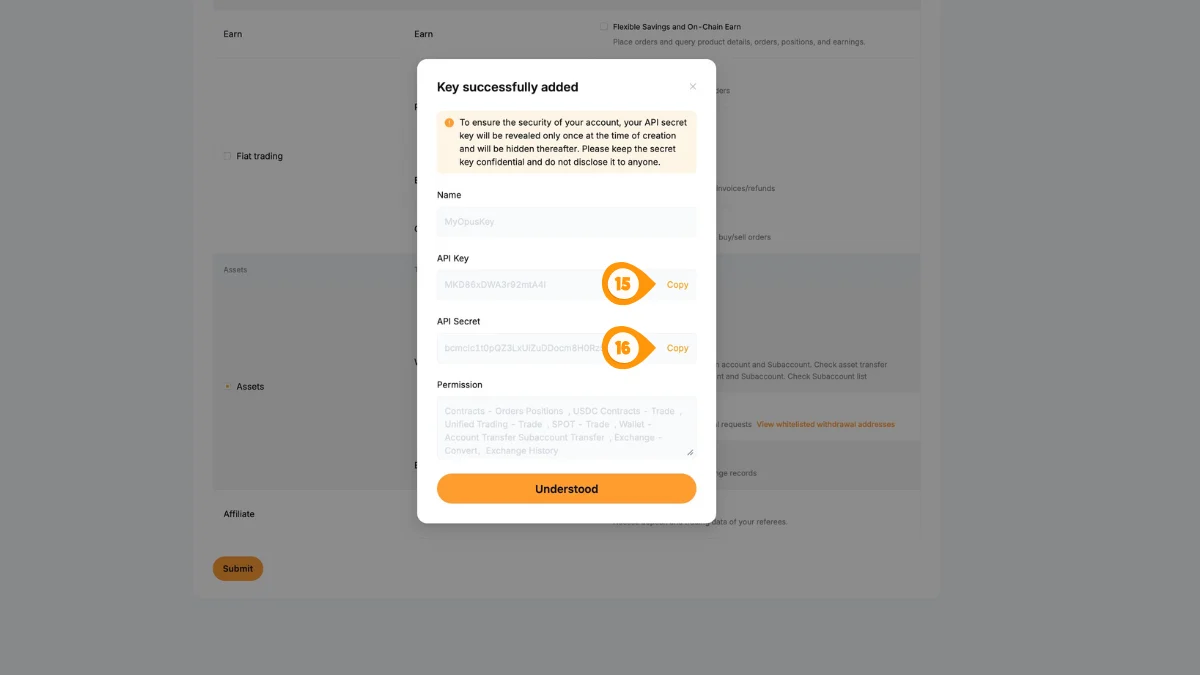
- Copy the API Key
- Copy the API Secret
Bybit API keys have expiration dates. Check your key's expiration and renew as needed if you encounter authentication errors.
Step 7: Open Crodl Settings
Back in Crodl, open Settings so you can add your Bybit API key.
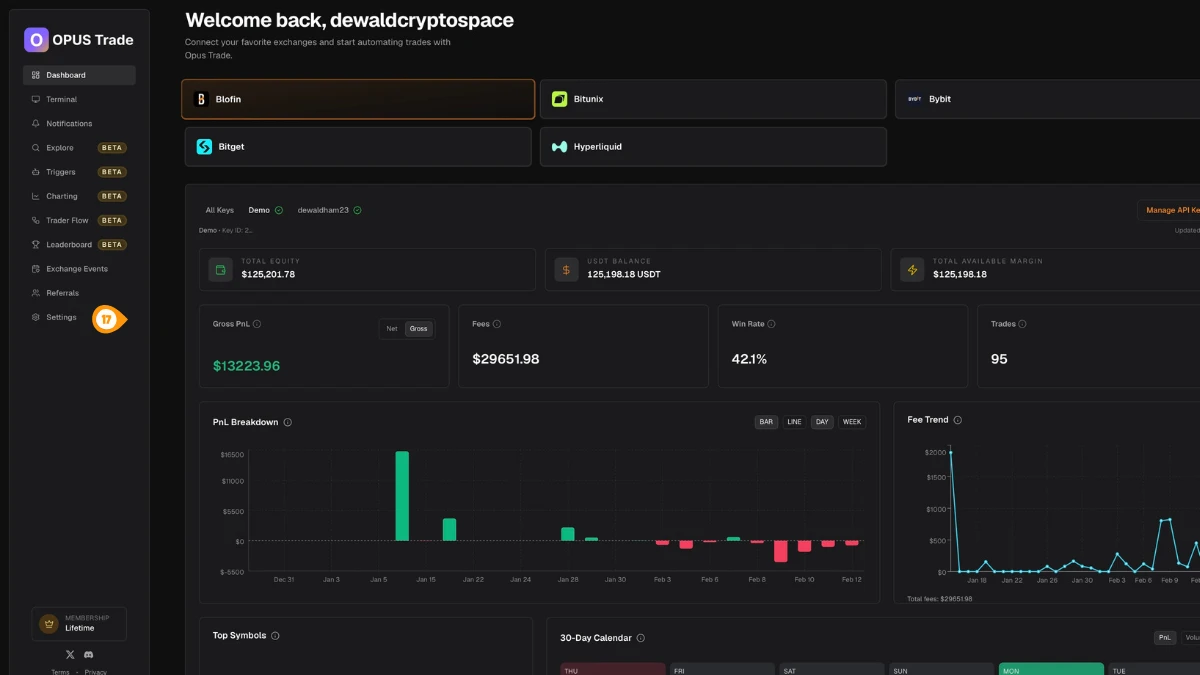
- Click "Settings" in the left sidebar
Step 8: Add Your Bybit Key to Crodl
In Settings → API Keys, select Bybit and paste your credentials. Choose the correct region endpoint.
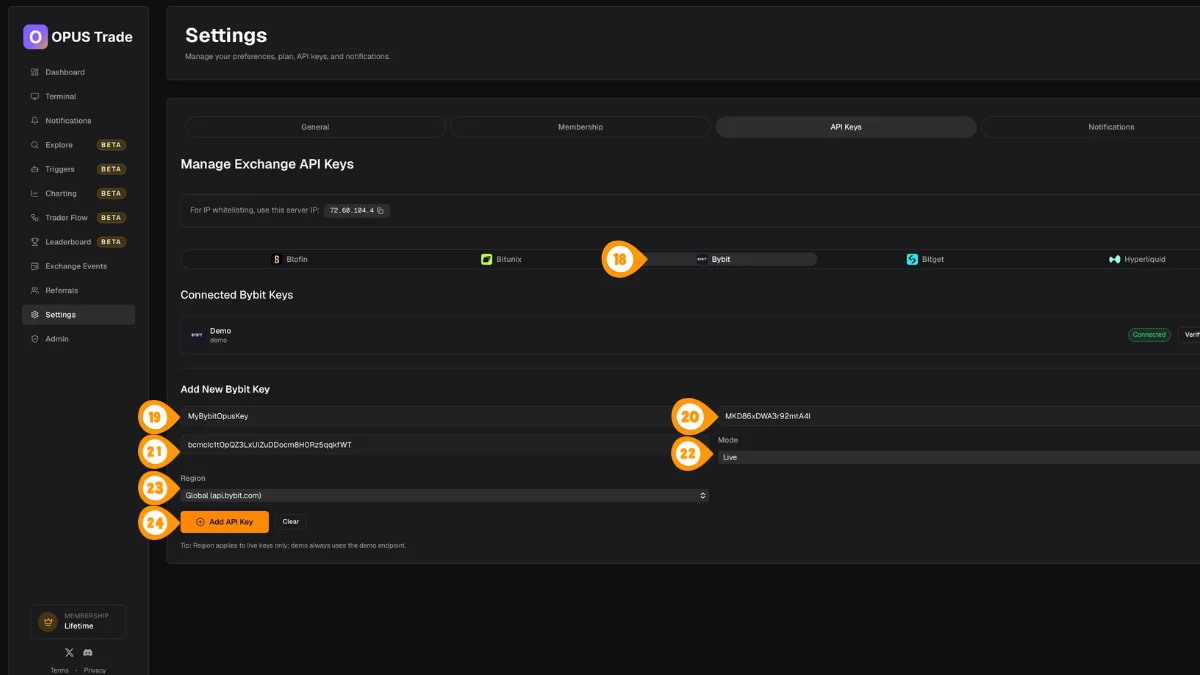
- Select the Bybit tab
- Enter a label for this key (e.g. "Main Account")
- Paste your Bybit API Key
- Paste your Bybit API Secret
- Choose the mode (Live or Demo) to match your key
- Select the correct region endpoint for your Bybit account:
| Region | Endpoint |
|---|---|
| Global (default) | api.bybit.com |
| Netherlands | api.bybit.nl |
| Turkey | api.bybit-tr.com |
| Kazakhstan | api.bybit.kz |
| Georgia | api.bybitgeorgia.ge |
| UAE | api.bybit.ae |
| EEA | api.bybit.eu |
- Click "Add API Key"
Select the region that matches where your Bybit account was registered. The region setting only applies to live keys — demo keys always use the demo endpoint.
Step 9: Verify the Connection
Verify the key to confirm Crodl can connect and trade using your new API credentials.
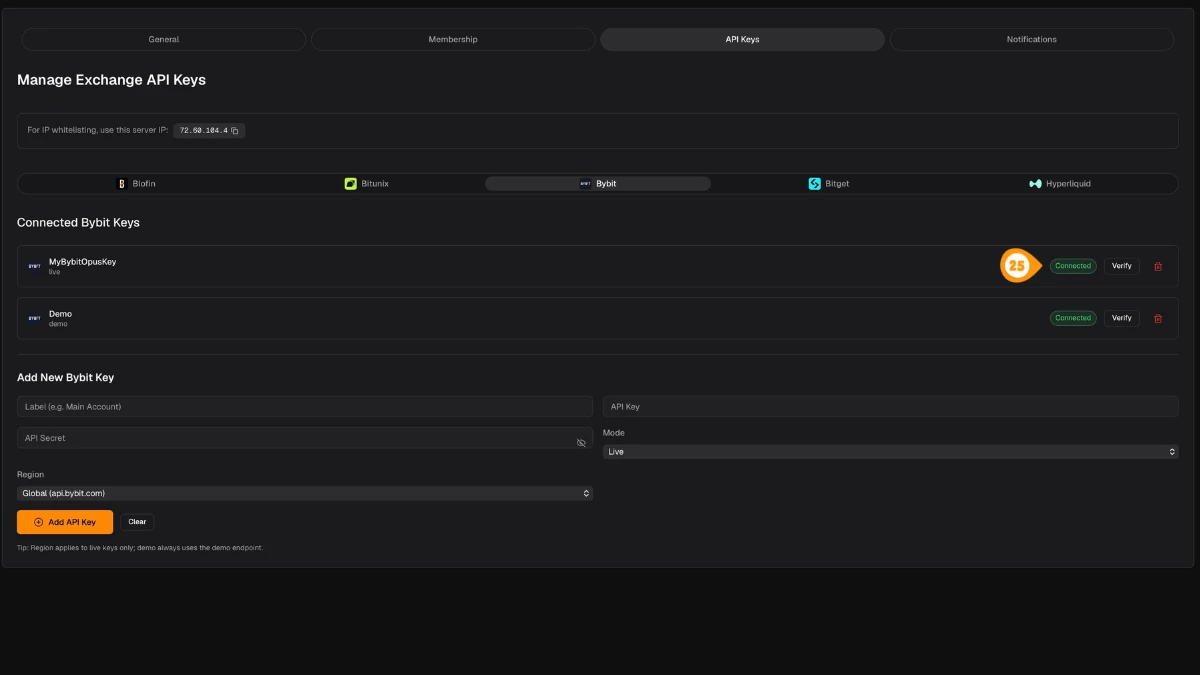
- Click "Verify" next to the key you just added
A green "Connected" badge confirms everything is working.
For demo trading, use Bybit's Demo Trading environment on the main site: open your profile menu on bybit.com and switch to Demo Trading, then create the API key there. Demo keys authenticate against api-demo.bybit.com. Keys created on testnet.bybit.com are a different environment and will not work in Crodl.
Features
Unified Trading Account
Bybit's v5 API uses a unified trading account. Crodl reads your UTA balance and displays positions across all contract types.
Order Types
- Market orders — Execute at best available price
- Limit orders — Execute at specified price
- Conditional orders — Trigger-based execution with TP/SL
Position Data
- Real-time unrealized PnL
- Entry price and mark price
- Leverage and margin mode
- Liquidation price
Rate Limits
Bybit enforces per-UID rate limits on its v5 API (rolling 1-second window):
- Order and position writes — 10 requests per second
- Order, position, and account reads — 50 requests per second
- User endpoints — 10 requests per second
Crodl respects these limits with automatic per-key throttling, and data refreshes every 30 seconds.
Troubleshooting
- Ensure your API key has Contract read-write permission
- Verify the correct region is selected (must match your registration region)
- Check if your key requires IP whitelisting — add
187.127.209.38 - Verify the key hasn't expired (Bybit keys have expiration dates)
- See Common Issues for more help